

Last Updated: November 21, 2024
Do you miss the simplicity of the good old Windows Photo Viewer in Windows 10? You aren’t alone. Microsoft replaced the humble application with the Photos app – a feature-rich but slowly launched app. The good news is that you can still use Windows Photo Viewer, but it requires a bit of manual work. Here’s how to bring back Windows Photo Viewer.
Why Isn’t Windows Photo Viewer Enabled by Default?
Windows Photo Viewer hasn’t gone away; it’s simply been hidden. In Windows 10 installations that are new, this app is disabled by default.

Microsoft hopes users will appreciate the Photos app, with its integration with OneDrive and editing tools. But if you like the briskness and ease of Windows Photo Viewer, there is a way to bring it back.
Enabling Windows Photo Viewer: The Step-by-Step Guide
Here’s how you can enable Windows Photo Viewer in Windows 10:
1. Confirm It’s Still Available
First, make sure Windows Photo Viewer is actually installed on your PC. To do this:
- Right-click on any image file (like a JPG or PNG).
- Select Open with > Choose another app.
- Look for Windows Photo Viewer in the list of apps.
- If you see it, select it, and check the box for “Always use this app.” Done!
If it’s not there, don’t worry—you can enable it with a small tweak.
2. Modify the Registry
The easiest way to re-enable Windows Photo Viewer is by tweaking the registry. Here’s how:
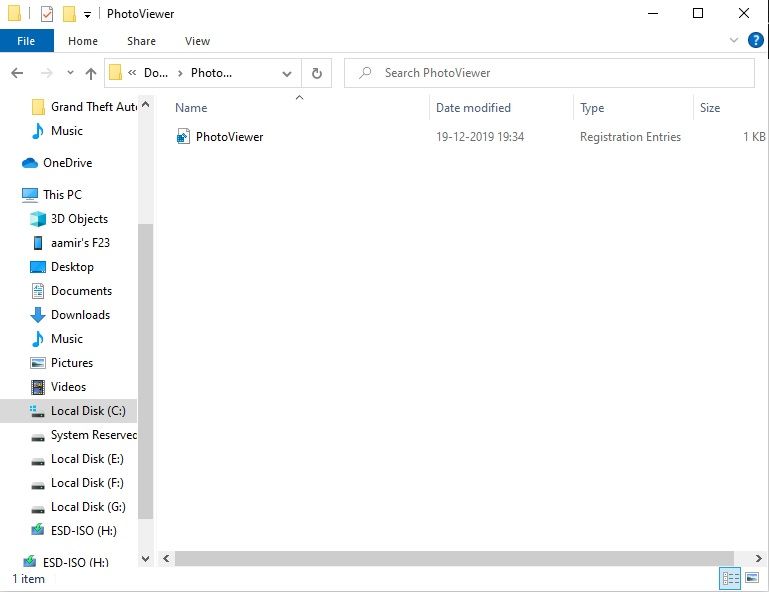
- Download a Registry File:
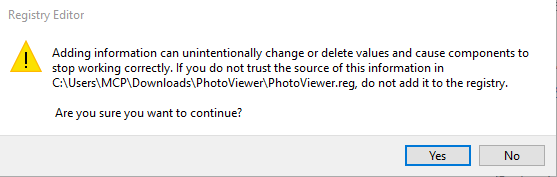
Instead of editing the registry manually (which can be risky), download a pre-made file that adds the necessary entries. You can find one online with a quick search for “Enable Windows Photo Viewer registry file.” - Run the File:
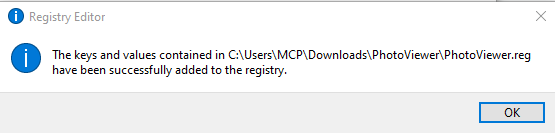
Double-click the downloaded.regfile and confirm any prompts to add the entries. - Restart Your PC:
Once applied, restart your computer to ensure the changes take effect.
3. Set Windows Photo Viewer as the Default
After enabling it, you’ll need to make Windows Photo Viewer your default app for opening images:
- Open Settings > Apps > Default apps.
- Scroll down and click Choose default apps by file type.
- For common image file types like
.jpg,.png, or.bmp, select Windows Photo Viewer.
Why Use Windows Photo Viewer?
Here’s why some people love it:
- Simplicity: It’s lightweight and straightforward.
- Speed: Opens quickly, even on older PCs.
- Familiarity: If you’ve been using Windows for years, it feels like home.
Final Thoughts
While the Photos app in Windows 10 has its benefits, not everyone needs all of these extra features. If you like to view images in the most straightforward way possible, Windows Photo Viewer is a good choice. The application can be reinstated easily by switching over through just a few adjustments.


